Navigate My Mediasite
My Mediasite provides a simple interface that allows you to create, record, share, and publish your presentations easily. You can also use it to view presentation analytics, interact with your audience via polls and Q & A forums, and manage quizzes.
My Mediasite also features a responsive layout that adjusts to whether you are creating and managing your presentations using your computer or mobile device.
|
Note The features available in your system may differ from the ones described here. Contact your Mediasite Administrator for more information. |
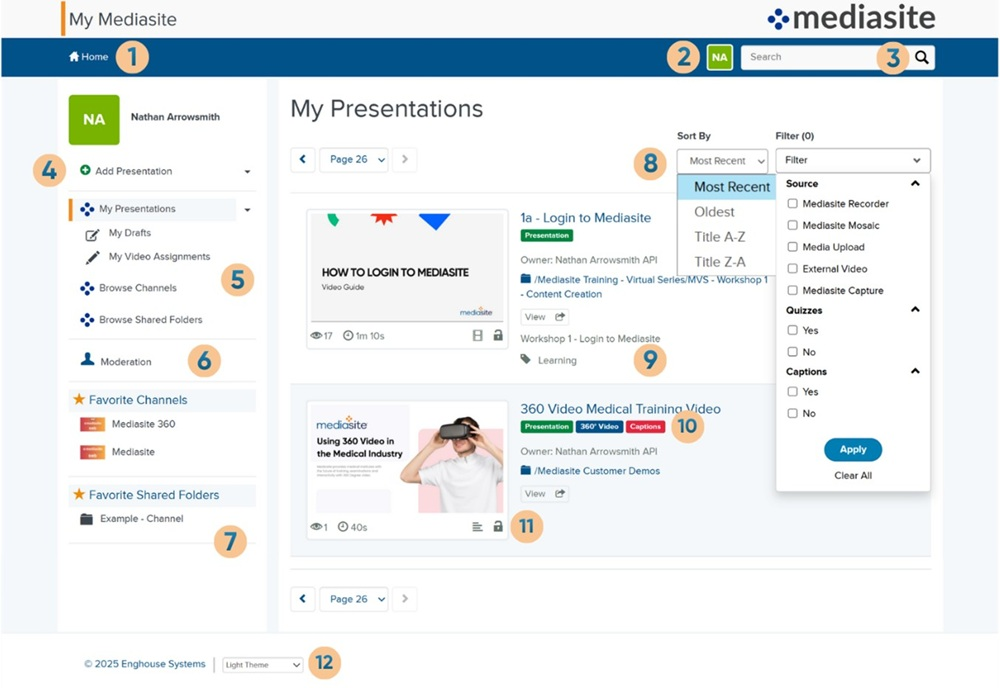
The following table explains how to use the My Mediasite Home page.
|
Item |
Description |
|
|---|---|---|
|
1 |
Click Home to go to your homepage. This is the starting point where you can view all of My Mediasite settings and features in one place. You can also see your presentations by default. |
|
|
2 |
Click your initials in the top banner
(for example
|
|
|
3 |
Quick Search - enter a phrase in the search field to locate presentations,
channels, and shared folders. Mediasite does a search against metadata,
including title, presenters, tags, etc. To view more detailed search
results, click Search |
|
|
4 |
Click Add Presentation to go to a new page where you can create blank presentations, Capture video, upload a video file, or link to an external video.
|
|
|
5 |
Click My Presentations to view all of your presentations, missed presentations, and upcoming presentations. Click Browse Channels and Browse Shared Folders to view all channels and shared folders you have access to in My Mediasite.
|
|
|
6 |
Approvals - you can put your recorded presentations through an iterative content approval (review-edit-approve) workflow before making them available to your audience. Click Approvals to see updated presentations that need to be approved. Moderation - you can use My Mediasite to review and respond to questions from the audience. This feature must be enabled on the presentation. Viewers ask questions using the Mediasite Player and can optionally include with their question the exact time in the presentation that they submitted the question. |
|
|
7 |
Favorite Channels - you can select a channel as your favorite to display it in the left navigation panel for easy access. Favorite Shared Folders - you can select a shared folder as your favorite to display it in the left navigation panel for easy access. |
|
|
8 |
Sort by - select how you want presentations sorted from the drop-down list:
Filter- filter presentations by the following: Source:
Quizzes:
Captions:
|
|
|
9 |
Presentation tags. You can use presentation tags to create search-based channels. |
|
|
10 |
Click a presentation’s title or thumbnail to view its properties page. The labels below the presentation titles show the features available in the presentation. |
|
|
11 |
Quickly access presentation details and features:
|
|
|
12 |
Select a theme that provides you with the best viewing experience. |
 )
and select one of the following items from the drop-down list:
)
and select one of the following items from the drop-down list: .
.  to see the number of presentation views.
 to view the presentation length.
 to open the presentation for
editing in the Web Editor. The Web Editor opens in a separate browser tab.
to open the presentation for
editing in the Web Editor. The Web Editor opens in a separate browser tab. to update existing quizzes or add more.
  to launch the Caption Editor.
 or Viewable
  to set the presentation’s visibility. Only you can
view your private presentations in Mediasite Player. Any user with appropriate permissions can watch viewable presentations.
to set the presentation’s visibility. Only you can
view your private presentations in Mediasite Player. Any user with appropriate permissions can watch viewable presentations. indicates the tags
associated with the presentation.
indicates the tags
associated with the presentation.