Update your user settings
When you log in to My Mediasite for the first time, you may be asked to create a user profile. After your profile is created, you can access your profile settings at any time to update your personal information and customize your experience when using Mediasite.
My Settings includes information such as the email address to which notifications should be sent as well as details that you want included when you are featured as a presenter in a presentation. You also use this page to enable and disable forwarding of viewer submitted questions and presentation notifications. On some systems, you have the option of syncing MyMediasite with OneDrive.
To update your settings:
- Click your initials in the top banner and select My Settings.
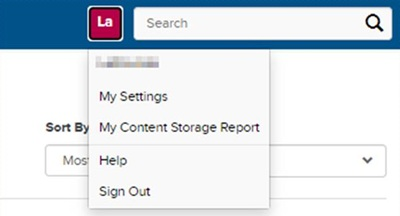
- Update the settings as needed:
- Update your profile settings
- Customize notifications
- Update your presenter information
- Specify your publishing settings
- Sync Mediasite with OneDrive (limited availability)
Update your profile settings
|
Note In some systems, your Mediasite administrator may have created your user profile. However, you can still update these settings. |
To update your profile settings:
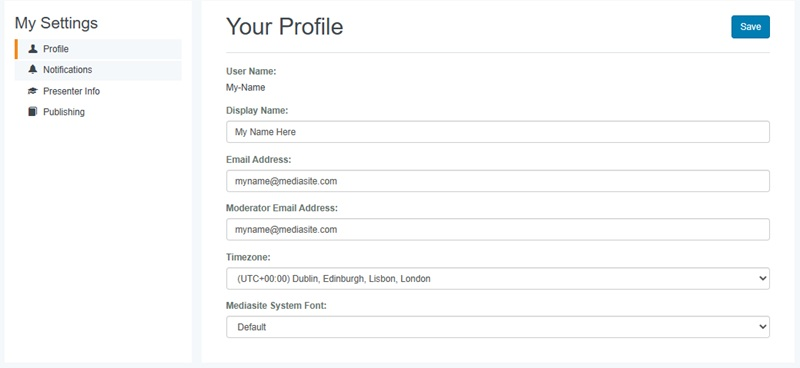
- On the My Settings page, click Profile.
- Update the settings as needed.
|
User Name |
The name you use to log in to My Mediasite. |
|
Display Name |
The name displayed in My Mediasite when you are logged in. |
|
Email Address |
The email address associated with your user profile in Mediasite. All notifications are sent to this address. |
|
Moderator Email Address |
The email address of the person responsible for moderating your presentations. All audience submitted questions are forwarded to this email address. |
|
Timezone |
Select the time zone Mediasite uses by default when you create presentations. |
|
Mediasite System Font |
If needed, select Dyslexie from the drop-down list. Dyslexie is a font designed to enhance the ease of reading and comprehension for people with dyslexia. Click Default to return to the default font. |
- Click Save.
|
Note When you change your email address, a notification is sent to the original email address. A user profile activation email is also sent to the new email address. You must validate your user profile to reinstate any permissions assigned to your user profile directly. However, this change does not affect other permissions. Contact your Mediasite administrator for more information if you are unable to access features you had access to previously. |
Customize notifications
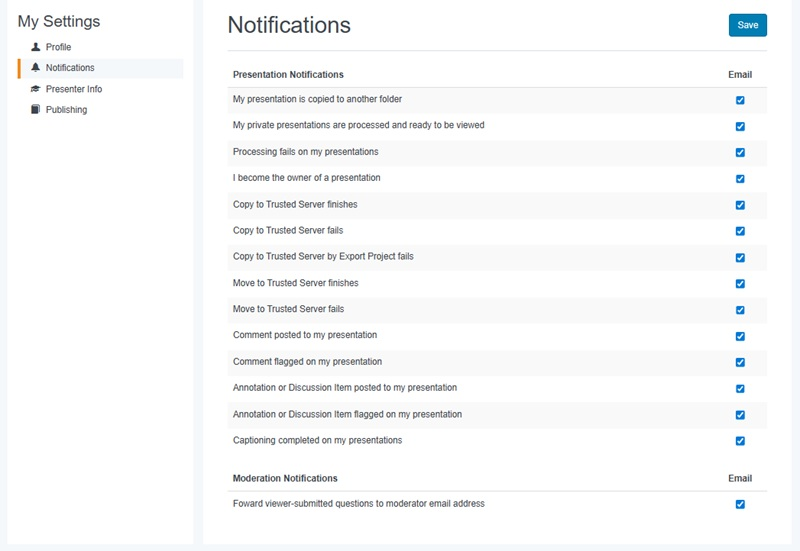
By default, all presentation notifications are selected. You receive emails if any selected notification requirement is met on any of your presentations.
|
Note The notifications available to you depend on the features available on your Mediasite. |
To select the notifications you want to receive:
- On the My Settings page, click Notifications.
- Under Presentation notifications, clear the check box next to each notification you want to disable.
- Under Moderation notifications, if you want to send questions submitted by your audience to a moderator’s email address instead of your email address, select the Forward viewer-submitted questions to moderator email address check box.
|
Note You specify the moderator’s email address in your Profile settings. |
- Click Save.
Update your presenter information
To enter the details you want to include in presentations featuring you:
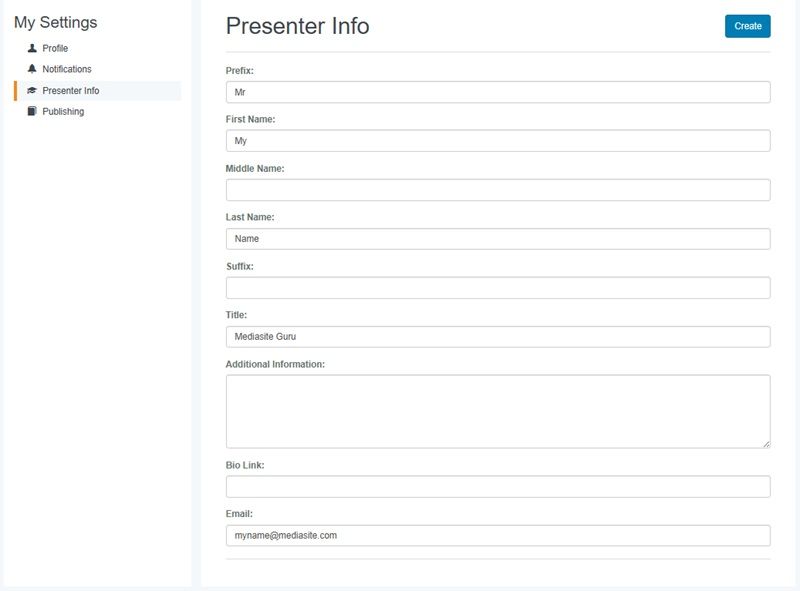
- On the My Settings page, click Presenter Info.
- Update the settings as needed.
|
Name |
Enter your first name and last name, optionally including your middle name and prefixes and suffixes (for example, Mr. or Ms. as your prefix, Jr. or Ph.D. as your suffix), as you want it displayed in your presentations. |
|
Title |
Enter your title as you want it displayed in your presentations. |
|
Additional Information |
Include any information about yourself that you want displayed in presentations featuring you as a presenter. |
|
Bio Link |
Enter the URL to add a link that viewers can click to view additional information about you. |
|
|
Enter the email address you want associated with your presenter information. This email address may be different than the one associated with your profile. |
- Click Create.
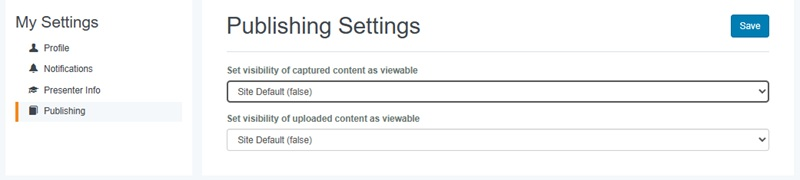
Specify your publishing settings
- On the My Settings page, click Publishing.
- Update the settings as needed.
|
Set visibility of captured content as viewable |
Set the default visibility of presentations created using Mediasite Capture to:
|
|
Set visibility of uploaded content as viewable |
Set the default visibility of presentations created by uploading a video file to:
|
- Click Save.
Sync Mediasite with OneDrive (limited availability)
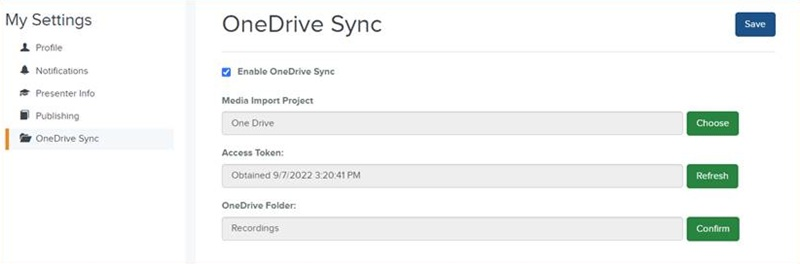
On some systems, you can sync Mediasite with your OneDrive folder to import recordings. After your recordings are in Mediasite, you can manage them the same way you manage your other presentations.
To sync Mediasite with your OneDrive folder:
- On the My Settings page, click OneDrive Sync.
- Select the Enable OneDrive Sync check box.
- Click Choose and select the Media Import Project from the drop-down list. If there are multiple options and you are not sure which one to select, contact your Mediasite administrator.
- After you select a media import project, the OneDrive Token confirmation message appears. Click Accept to authenticate with Microsoft and obtain the access token needed to access your OneDrive folder and import content to Mediasite.
- After you have successfully connected to Microsoft, the remaining fields are automatically updated. Click Confirm to verify that you can connect to your OneDrive Folder.
- Click Save.