Record video with Mediasite Capture (in-browser)
You use Mediasite Capture to record audio, video, and slides from your desktop and upload the resulting recording to Mediasite. Mediasite Capture is browser-based, so you do not need to install software to use it.
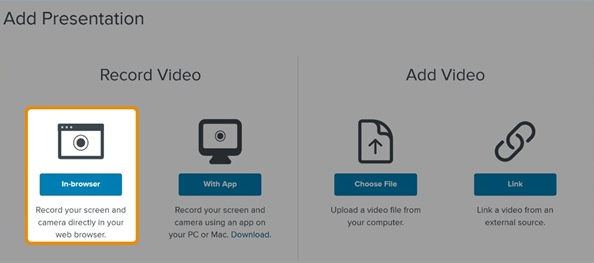
|
Note If this feature is not available on your Mediasite, contact your Mediasite administrator for more information. |
To record a video using Mediasite Capture:
- Click Add Presentation. Under Record Video, click In-browser to open the New Presentation Details window.
- Enter a Title and Description for your presentation.
- Under Destination, choose where you want to store your presentation.
|
My Drafts |
This is the default destination for your presentations. When you store a presentation in your draft location, it is only visible to you. Until you are ready to share your presentation with others or publish it, we recommend keeping it here. |
|
Choose a new location |
|
|
Note For more information on shared folders and channels, see Move presentations to a shared folder and Move presentations to a channel. |
- Click Create and Launch to launch Mediasite Capture in a new browser tab and start recording.
- When the recording process is completed, the recording is uploaded and processed. All presentations are Private until you set them to be visible.
- Update, share, and publish your recorded presentation as needed, to make it available to your audience.