Delete presentation revisions
You can use your content storage report to delete presentations (and all associated revisions, and files), intermediate revisions, and archive revisions.
Delete presentations
To delete presentations:
- Click your initials in the top banner and select My Content Storage Report.
- On the Presentations tab, sort the presentations as needed.
- Select the check box next to each presentation you want to remove (or select all by clicking the check box in the heading).
- Click Delete.
- When the confirmation message appears, click OK.
- Refresh the report to see your updates.
|
Caution When you delete a presentation from your content storage report page, you delete all revisions and files associated with it. If you delete a presentation by accident, contact your Mediasite administrator who may be able to restore it. |
Delete your presentations’ intermediate revisions
To delete intermediate revisions:
- Click your initials in the top banner and select My Content Storage Report.
- On the Presentations tab, sort the presentations as needed.
- Select the check box next to each presentation with intermediate revisions you want to remove.
- Select Revisions > Delete Intermediate Revisions.
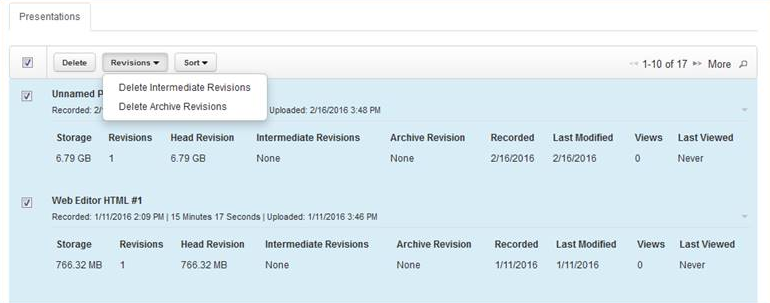
- When the confirmation message appears, click OK.
- Refresh the report to see your updates.
Delete your presentations’ archive revisions
To delete archive revisions:
- Click your initials in the top banner and select My Content Storage Report.
- On the Presentations tab, sort the presentations as needed.
- Select the check box next to each presentation with intermediate revisions you want to remove.
- Select Revisions > Delete Archive Revisions.
- When the confirmation message appears, click OK.
- Refresh the report to see your updates.