Upload video file
Create a video-only on-demand presentation by uploading a media file to Mediasite. If you are uploading a 360⁰ video file, Mediasite automatically detects it and provides the option for you to enable 360⁰ video playback.
Considerations when uploading 360⁰ video files
- You can only upload MP4 files when using 360⁰ video.
- After you upload the file, you enable 360° video playback on the presentation’s Information tab.
- The following features are not available for 360⁰ video presentations: Slides, Captions, Polls, Quizzes, Video editing (within the application), Delivery options (podcast, video podcast, and captions), Post-presentation links.
|
Note You can upload a variety of media file formats to My Mediasite. For a complete listing of the media file formats supported, contact your Mediasite administrator. |
To create a new presentation by uploading a media file:
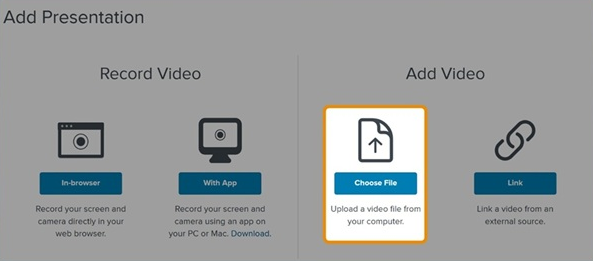
- Click Add Presentation.
- Under Add Video, click Choose File and select the media file you want.
- After the file successfully uploads, the New Presentation Details dialog appears.
- Enter a Title and Description for your presentation.
- Under Destination, choose where you want to store your presentation.
|
My Drafts |
This is the default destination for your presentations. When you store a presentation in your draft location, it is only visible to you. Until you are ready to share your presentation with others or publish it, we recommend keeping it here. |
|
Choose a new location |
|
- Click Create Presentation to create the new presentation in the specified location.
- After the media upload is processed, the presentation's status updates. All presentations are Private until you set them to visible.
- Update, share, and publish your recorded presentation as needed, to make it available to your audience.