Update information settings
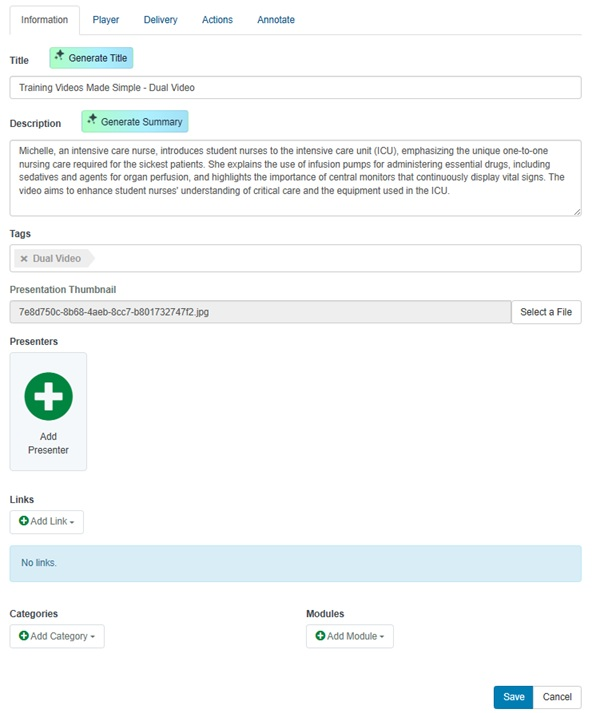
You can update the following as part of a presentation’s information settings: title, description, tags, presenters, links, categories, and modules. Users can search for presentations using the metadata specified on this page.
To update a presentation’s information settings:
- On the presentation’s properties page, click Edit Details.
- Click the Information tab and update the settings as needed.
|
Title |
Enter a descriptive title for the presentation. Titles are searchable in other applications. |
|
|
Description |
Enter a short description of the presentation. Descriptions are searchable in channels. |
|
|
Tags |
Enter searchable tags for the presentation. For example, if this presentation is for a computer science class titled CS150: Components and Design Techniques for Digital Systems, you might want to include the following tags: CS 150, digital design, computer science. |
|
|
Presentation Thumbnail |
Select a file to replace the system-generated thumbnail. The thumbnail is displayed along with the presentation’s details in the catalog and other applications. |
|
|
Presenters |
To remove the presenter from the presentation, click the X in the upper-right corner of the presenter thumbnail. To add additional presenters, click Add Presenter. Use the search feature to find presenters that have already been added on your Mediasite. Click Create New Presenter to specify the details for a new presenter. |
|
|
Links |
Click Add Link. Enter the name and URL for the hyperlink you want to add to your presentation and enter Add New Link. Your audience can click links in the Player or presentation details to view other websites or online documents. |
|
|
Categories |
Click Add Category to assign a category (for example, Science) to your presentation. If a presentation is published to YouTube and its category matches one of YouTube's categories, the uploaded video is placed into that YouTube category. You may add multiple categories to a presentation.
|
|
|
Modules |
Click Add Module to assign a module (for example, Physics 101) to your presentation. You may add multiple modules to a presentation. Modules are used when integrating Mediasite with a Learning Management System (LMS).
|
- Click Save.