Upload video from an external source
You can add a new presentation by linking to an external video. When you add an external video to a presentation, you can display it in video collections.
|
Note The video content is not stored in Mediasite, so a system player is assigned to the presentation, which limits the analytics available. The following features are not available: Captions, Q & A forums, Polls, Live broadcast, Podcast, Video podcast, Add Like, Copy To/Export To, Editing, Content server groups, Stream groups. |
|
Note If this feature is not available on your system, contact your Mediasite administrator for more information. |
To create a new presentation by linking to an external video:
- Click Add Presentation.
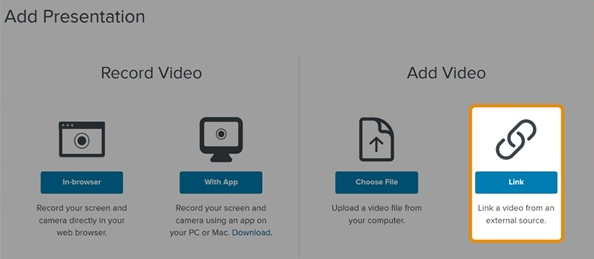
- Under Add Video, click Link.
- Click Link Video.
- When the New External Video dialog appears, paste the URL or embed code for the video in External Video URL. If there is a thumbnail associated with the video, its URL appears in External Video Thumbnail URL.
- Update the presentation’s Name as needed and enter a Description.
- Under Destination, choose where you want to store your presentation.
|
My Drafts |
This is the default destination for your presentations. Content in your draft location is only visible to you. Until you are ready to share your presentation with others or publish it, we recommend keeping it here. |
|
Choose a new location |
|
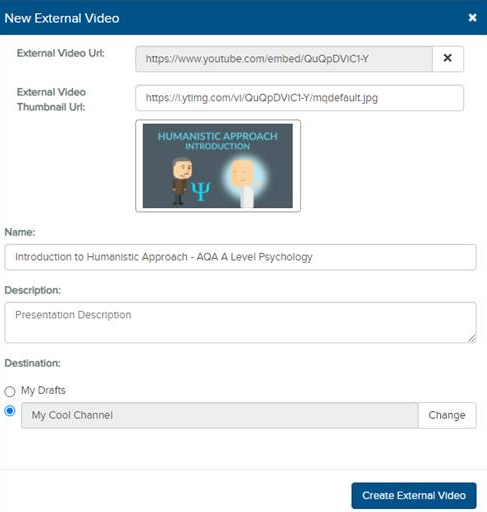
- Click Create External Video.
- Update, share, and publish your recorded presentation as needed to make it available to your audience.