Add captions to presentations
Providing closed captions on your presentations offers numerous benefits. Primarily for audience members who are d/Deaf or hard of hearing, captions also support a wider range of learners - including those watching in sound-sensitive environments, non-native speakers, and people with auditory processing differences. Captions additionally enhance metadata-based content searching.
You can add closed captions to an on-demand presentation by creating closed caption files and uploading them to the presentation. You can create caption files yourself using Caption Editor, Mediasite’s Automatic captioning service, or a third party captioning service. Your audience can turn on the caption features and view the captions in the player.
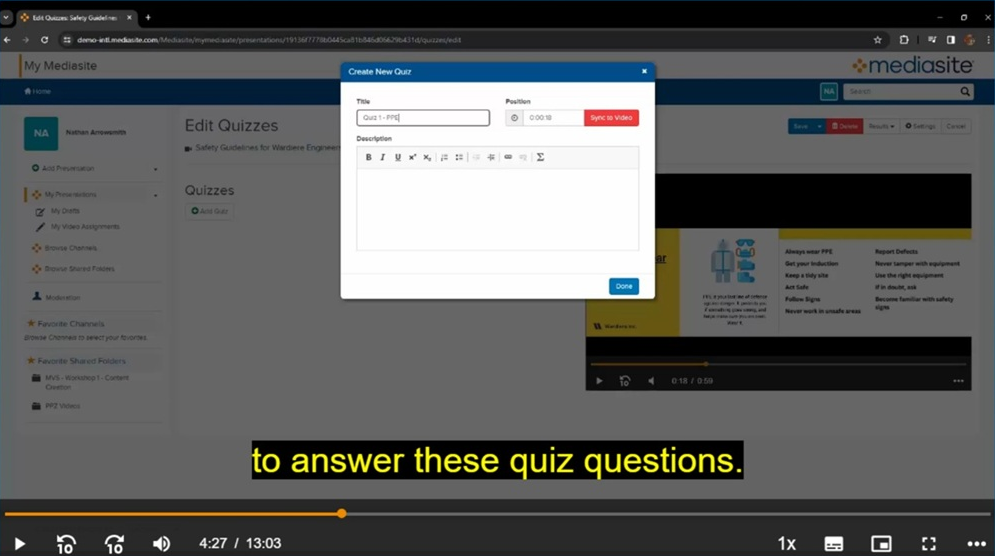
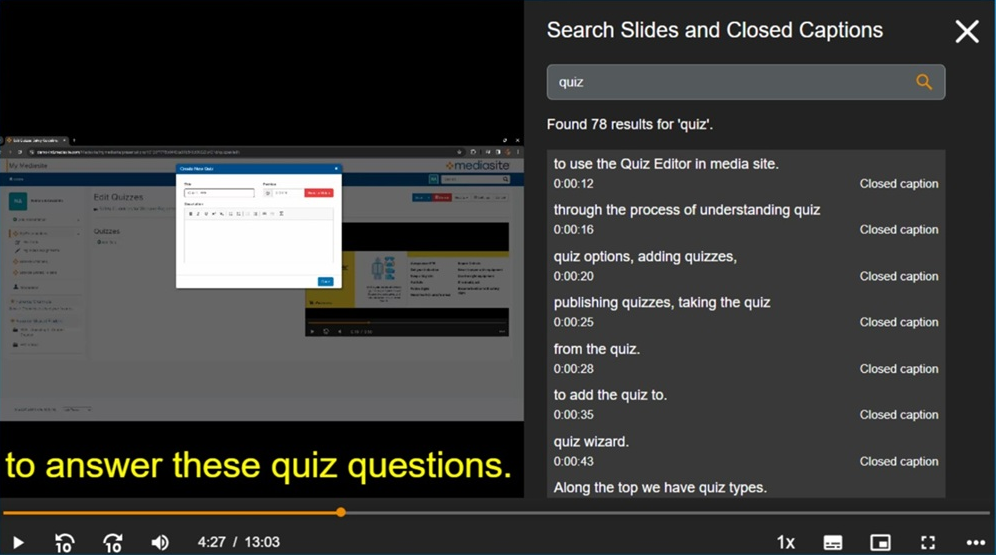
Your audience can also search closed caption text in players and video collections for specific words and phrases. All presentations with closed captions have a Captions label.
|
Note
|
Considerations when adding closed captions
When adding captions to a presentation manually or using a captioning service, consider the following:
- Mediasite supports Web Video Text Tracks (VTT), Synchronized Accessible Media Interchange (SAMI), SubRip (SRT), and Distribution Format Exchange Profile (DFXP). However, Enghouse Mediasite does not provide SAMI, SRT, VTT, or DFXP files or tools for authoring them.
- Mediasite supports DFXP caption files containing multiple languages. When using a Multiple language DFXP caption file, you can edit each language individually in the caption editor. We strongly recommend editing the presentation prior to creating caption files.
- Non-English captions must be saved with UTF-8-character encodings.
- Mediasite supports begin and end times in DXFP so you can specify expiration times, that is, how long captions remain on screen.
- Captions are centered and appear directly below the video window even when player is enlarged.
This section contains the following topics: