Move a presentation
When you create a new presentation, its default location is My Drafts. Other users cannot see the contents of your draft folder. When you move a presentation to a shared folder or channel. Your viewers now have access to it. When moving the presentation to a shared folder or back to the Drafts folder, you can specify how permissions and actions on it are handled.
|
Note Before you move a presentation, make sure you have a clear understanding of the actions and permissions assigned to it as well as the destination folder’s permission. |
To move your presentation:
- On the presentation’s properties page, click Move To and specify where you want to move the presentation. Your selection determines the remaining settings shown.
|
Place this Presentation in your Drafts folder |
Select to move the presentation back to your Drafts folder to continue making updates. Only you can view the presentation. However, you can still update the permissions and actions on it. |
|
Place this Presentation in a Shared folder |
Select to move the presentation to a shared folder. Select the permissions for the presentation and the shared folder. You can use the search feature to locate the shared folder. |
|
Place this Presentation in a Channel |
Select to move the presentation to a channel. Select the permissions for the presentation and the channel. You can use the search feature to locate the channel. |
- If applicable, under Permissions, specify the permissions for the presentation after it is moved.
|
Keep permissions from source presentation |
Select to keep all permissions already assigned to the presentation. |
|
Inherit permissions from parent folder |
Select to have the presentation inherit the permissions on the destination folder. |
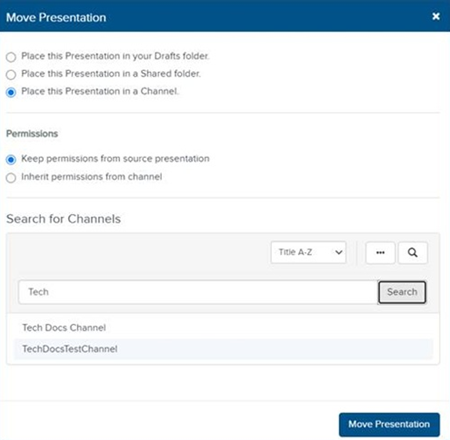
- Click Move Presentation.