Record video with Mediasite Mosaic (desktop app)
|
Note This option is not supported after 31.12.2025. |
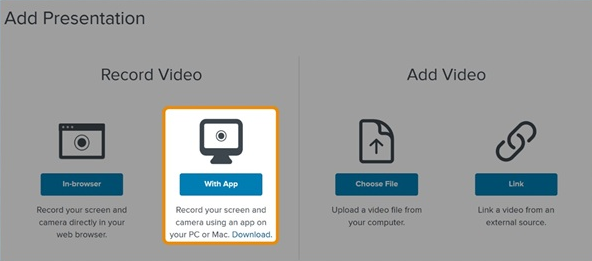
You use Mediasite Mosaic to record audio, video, and slides from your desktop and upload the resulting recording to Mediasite. However, if the capture app is not available on your machine, you must download and install it first.
|
Note If this feature is not available on your Mediasite, contact your Mediasite administrator for more information. |
To record a video using Mediasite Mosaic:
- Click Add Presentation. Under Record Video, click With App to open the New Presentation Details window.
- Enter a Title and Description for your presentation.
- Under Destination, choose where you want to store your presentation.
|
My Drafts |
This is the default destination for your presentations. When you store a presentation in your draft location, it is only visible to you. Until you are ready to share your presentation with others or publish it, we recommend keeping it here. |
|
Choose a new location |
|
|
Note For more information on shared folders and channels, see Move presentations to a shared folder and Move presentations to a channel. |
- Click Create and Launch to launch Mediasite Mosaic. If Mosaic is not installed on your machine, you are prompted to download and install it.
- Start recording. After the recording process is completed, the recording is uploaded and processed. All presentations are Private until you set them to be visible.
- Update, share, and publish your recorded presentation as needed, to make it available to your audience.