Use Record Now
Now that you have set up your rooms, your users can begin using Record Now. They can launch Record Now from a Podium PC using the Record Now Launcher desktop shortcut. Alternatively, they can launch it directly from a web browser using its URL.
Record Now URL
The Record Now URL has the following format:
https://myserver.mynetwork.net/Mediasite/RecordNow/<room-ID>
|
Note You can obtain a room’s Record Now URL by launching Record Now from Management Portal and copying the URL. |
Record ad-hoc presentation using Record Now
Users launch Record Now on a Podium PC using the Record Now launcher. When you launch Record Now, you select a recording type based on a room’s recording capability.
When a user starts a Record Now session, the scheduled presentation is automatically created and placed within their user folder. For example, if the recording is done by someone logged in as dmanly@sofouniversity.edu, the presentation is in the Mediasite Users/dmanly@sofouniversity.edu folder. Since these presentations are in user folders, users manage them from My Mediasite.
To record presentations using Record Now:
- Log into the Podium PC and launch Record Now using the Record Now Launcher. You may be required to enter your Mediasite credentials.
- Once Record Now is connected to the room, enter a presentation title and the duration of the presentation.
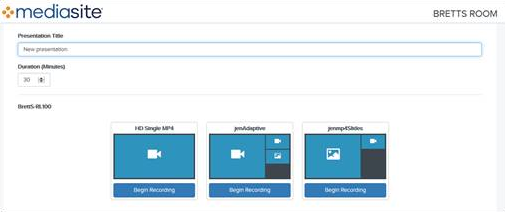
- Click Begin Recording under the template that best fits the type of presentation you want to record. Record Now creates and syncs a schedule for recording. The recording automatically opens and begins recording using the device that can record the selected recording type.
- You can use the Record Now controls to pause and stop the presentation as well as extend the presentation beyond the specified recording time:
- Pause/Resume - click to stop the recording temporarily. Keep in mind that the timer continues to run in respect to the presentation’s allotted time. For example, if a two-minute presentation is paused after one minute, the presentation still ends at the two-minute mark despite a pause occurring. After pausing, click Resume to continue recording your presentation.
- Stop - click to stop recording your current presentation. After a recording is stopped, it is automatically uploaded to Mediasite.
- Extend - click to extend the length of your recording. You can extend a presentation while it is recording and when it is paused. Once you have extended a recording, you must stop it manually. When a scheduled recording has less than three minutes left, you see a warning saying you may want to extend your recording.
For more information about the room Location Metadata server settings, see Add room location labels (optional).