Create rooms using an XML file
If you want to create multiple rooms and customize the way they are accessed, for example using the IP address, you can create recorder rooms using an XML file.
To create recorder rooms using an XML file:
- Click Recording > Room Configurations.
- Navigate to the Recorder room configuration you want.
- Directly below the configuration’s title, click Create rooms.
- From the Room Creation Method drop-down list, select Manually Export XML file.
- For the Room Naming settings, follow the same instructions for Create recorder rooms automatically.
- Under Podium PC Address specify how Record Now should connect to devices:
- None - select this option to create the room without specifying an IP address or machine name. You must go back and enter this information later.
- Use Catch Device IP Address - select this option to have Record Now connect to devices using their saved Catch IP address.
- Use Machine Name - select this option to have Record Now connect to devices using their domain names.

- Under Devices, select the devices you want to include in the XML file.
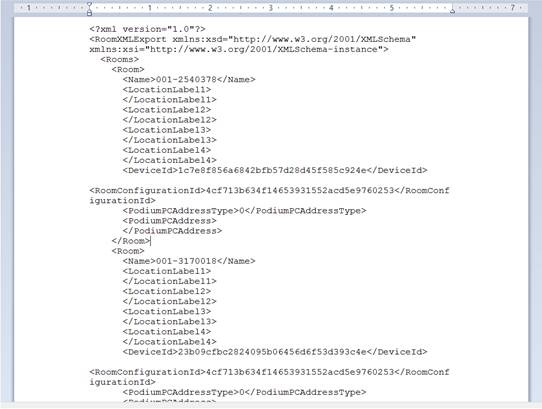
- Click Export. The roomXMLExports.xml file is created.
- Save or download the file and then update it as needed.
- Click Recording > Room Configuration.
- Navigate back to the Recorder or Catch room configuration you want.
- Select Manually Import Completed XML file from the room Creation Method drop-down list.
- Click Select a file and navigate to your file.
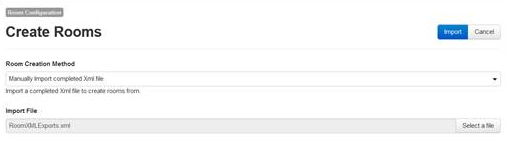
- Click Import. A room is created for each device in the XML file using the naming method and other settings you selected.