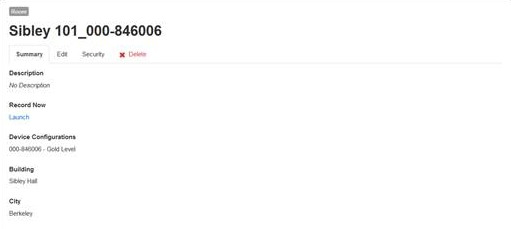
Create recorder rooms automatically
To create recorder rooms automatically:
- Click Recording > Room Configurations.
- Navigate to the Recorder room configuration you want.
- Directly below the configuration’s title, click Create Rooms.
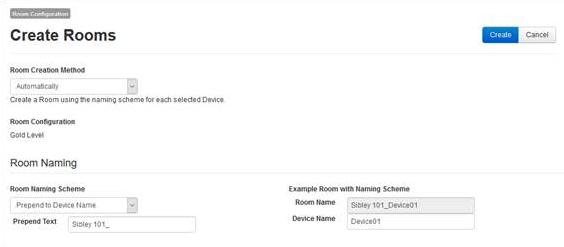
- From the Room Creation Method drop-down list, select Automatically.
- Under Room Naming, specify the naming scheme used for devices in this room. When users access a device in this room, they see this name displayed for the recording device.
- Use Device Name - select this option to use the device’s name.
- Append to Device Name - select this option to add text to the end of the device’s name. Enter the Append Text.
- Prepend to Device Name - select this option to add text to the beginning of the device’s name. Enter the Prepend Text.
- Replace Device Name - select this option if you are using a naming scheme for your devices in your organization but want to use a different scheme when users access the devices using Record Now. Enter the values for the text to replace and the replacement text in Find Text and Replace With, respectively.
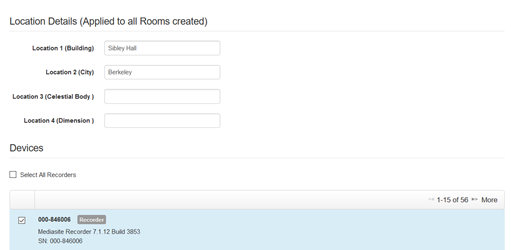
- Under Location Details, specify the location details to apply to all the created rooms. Typically, this includes building, floor, and room. However, the options available depend on the labels specified in the room Location Metadata server settings. For more information about the room Location Metadata server settings, see Add room location labels (optional).
- Under Devices, select the check box next to the device you want to add to the room. Note that only devices that are not already associated with a room are listed.
- Click Create.
- A confirmation message indicating the successful import of the devices (using the naming convention you selected) appears. Click Close.