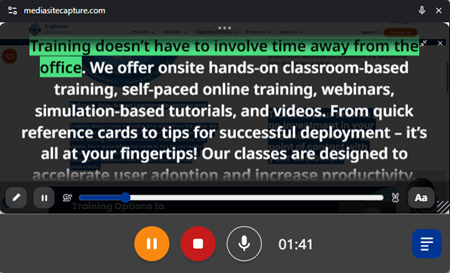
Use the teleprompter
Mediasite Capture has a teleprompter built into the Live Preview window that helps you deliver a more polished presentation.
You add your own script to the teleprompter that then floats over your video. While recording, the script auto-scrolls so you can maintain eye contact with your audience.
To use the teleprompter:
- On the Record page, click
 Show Live Preview near the top right.
 - In the Live Preview toolbar, click
 Show teleprompter.
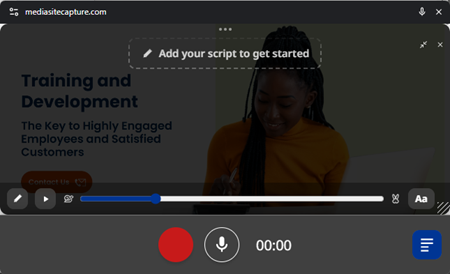
- In the teleprompter, click Add your script to get started.
- Paste your script into the Teleprompter Script dialog and edit it as required.
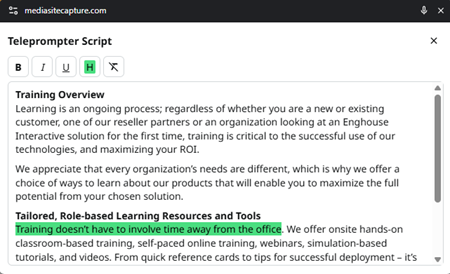
- After you close the Teleprompter Script dialog, the script appears over your video. To move the teleprompter within Live Preview, drag it to the required location.
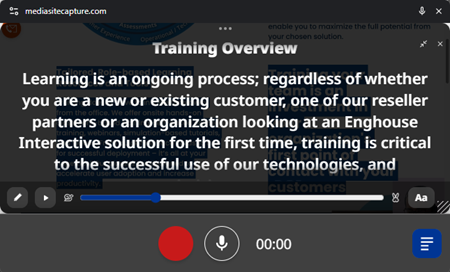
- To edit the script, click
 Edit script.
 - To check the scrolling speed, click
 Play.
Play. - To adjust the scrolling speed, drag the control toward the snail icon (slower) or hare icon (faster). Alternatively, use the left and right keyboard arrows to adjust the speed.

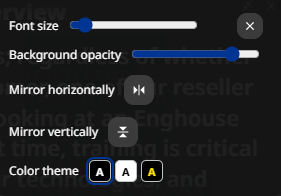
- To change the font size, background opacity, or color theme, or to mirror the text horizontally or vertically, click
 Open font settings.
- When you are ready, click
 Record. The teleprompter script scrolls automatically over the Live Preview video. You can pause the teleprompter and adjust the speed while recording.