Update delivery settings
A presentation’s delivery settings determine the different ways the presentation’s content is made available to the audience: closed captioning, podcast, or video podcast. You can also replace the system-generated thumbnail as part of these settings.
|
Note Members of the audience must have the appropriate permissions to download podcasts and vodcasts for presentations you are including in channels. These permissions are typically assigned by Mediasite administrators. Contact your Mediasite administrator for more information. |
To update a presentation’s delivery settings:
- On the presentation’s properties page, click Edit Details.
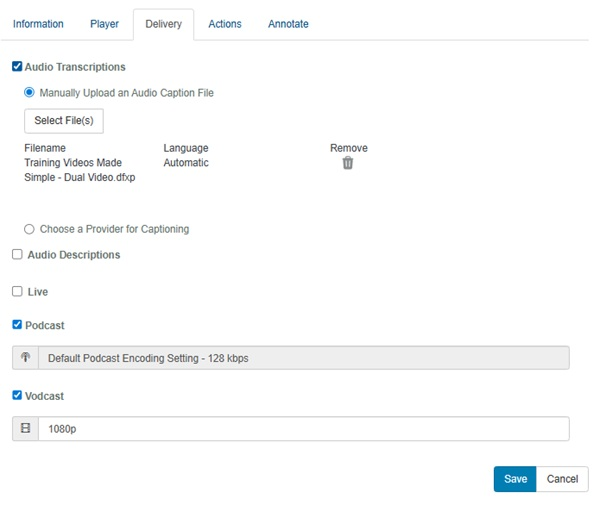
- Click the Delivery tab and update the settings as needed.
|
Audio Transcriptions |
Select this check box to enable audio transcriptions for on-demand presentations. You can add closed captions to the presentation manually or using a third-party captioning service. Mediasite supports Synchronized Accessible Media Interchange (SAMI), SubRip (SRT), and Distribution Format Exchange Profile (DFXP) files. Closed captions are supported in all player layouts. Select how you want to add captioning files to the presentation:
|
|
|
Language |
Select the transcription language. See Supported languages below. |
|
|
Audio Descriptions |
Select this check box to enable audio descriptions for on-demand presentations. When selected, an option to select a file appears. Click Select a file to open your local file browser where youcan select any .MP3 file to be used as the audio description track.
|
|
|
Live |
Select this check box if the presentation will be broadcast live.
|
|
|
Podcast |
Select this check box to enable podcasting on the presentation. Select the quality (encoding rate) from the drop-down list. After an MP3 file has been generated, you can download it from the Summary page. If downloads are enabled, users can also download podcasts from channels and catalogs that include the presentation. |
|
|
Vodcast |
Select this check box to enable video podcasting. Select a video podcast (vodcast) project from the drop-down list. The Vodcast project determines which streams are included in the video podcast as well as its look and feel. After an MP4 file has been generated, you can download it from the Summary page. If downloads are enabled, users can also download vodcasts from channels and catalogs that include the presentation.
|
- Click Save.
|
Note You can disable any of the delivery settings on a presentation at any time. However, whenever you disable audio transcriptions on a presentation that already has a closed captioning file, Mediasite deletes it. If you want to replace the deleted file, you must enable this feature again, upload the file manually (if you backed it up to an external location) or resubmit the job to the automated captioning service at an additional cost. |
Supported languages
|
|
|