Share a presentation as a vodcast
Video podcasts (vodcasts) are composited MP4 files that you can download from Mediasite and publish to other platforms.
You can download video podcast files to any location available from your network. For this feature to work, you must have Video Podcast (composite) enabled as part of the presentation’s delivery settings.
To share a presentation as a video podcast:
- Create a presentation or select an existing one.
- On the presentation’s properties page, click Edit Details.
- Click the Delivery tab.
- Select the Vodcast check box and select a Vodcast project from the drop-down list.
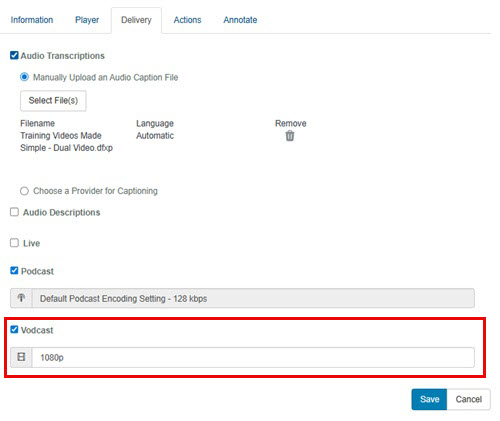
- Click Save. Mediasite generates the video podcast shortly after the presentation processes (after you record or upload media to it). The amount of time it takes depends on how busy your Mediasite is.
|
Note If this feature is not available on your Mediasite, contact your Mediasite administrator for more information. |
- Navigate to the bottom of the presentation’s properties page and click Download to Computer.
- When the Downloads dialog appears, click Vodcast (.mp4 Vodvast).
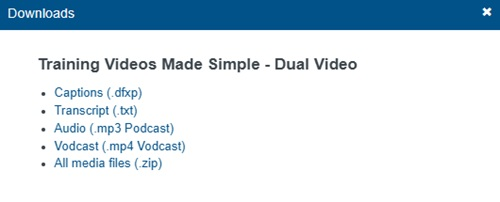
- Save the file and navigate to the download location. The name of the MP4 file matches the presentation’s title.
- You can now share the video podcast with your users the same way you share other MP4 content.
|
Note If you have shared your presentation in a user channel and the Allow Presentation Download option is selected for the channel, your audience can download the presentation as an MP4 file from the channel page. For more information, see Create Channels. If this feature is not available, contact your Mediasite administrator for more information. |