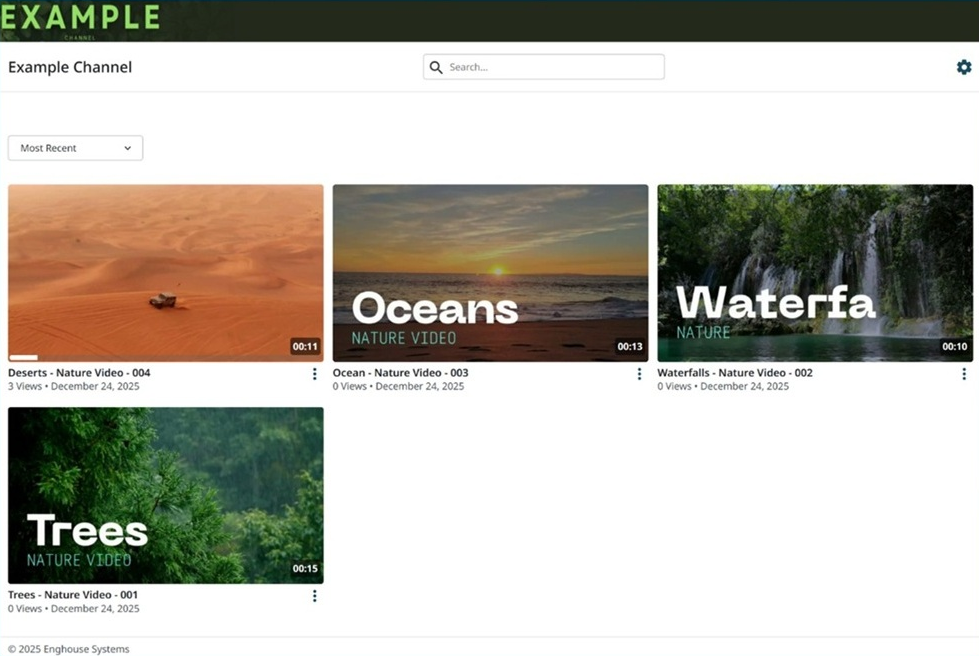
Create channels
Create a channel to share your presentations with a specific audience. You share the channel’s link with your audience directly. Only users with access to the channel are able to view the presentations in the channel.
After you create a channel, you can edit it, view it as it will appear to your audience, and move presentations into it.
|
Note Please note that your Mediasite administrator has full access to all channels and is able to view your private channels and its contents when managing your account. |
To create a channel in My Mediasite:
- Click Browse Channels and then click Add Channel.
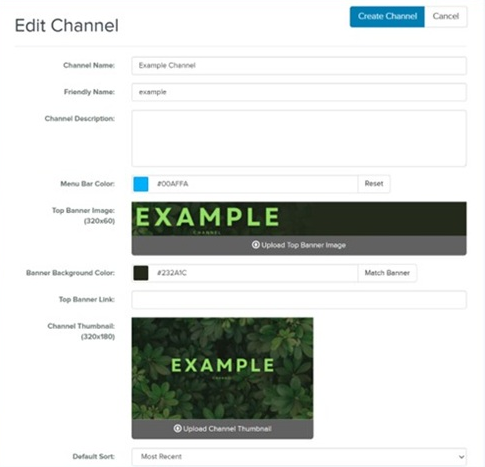
- On the Edit Channel page, specify the following information.
|
Channel Name |
Enter an easily identifiable name for your channel. |
|
Friendly Name |
Specify a friendly name for the channel to customize its URL. This value replaces the channel ID number in the URL. For example, if you give a channel mychannel as its friendly name, the URL uses this name instead of the channel ID: URL using channel ID: http://myserver.mynetwork.net/Mediasite/Channel/ ed968dc9872f456e93500b35872b334e21 URL using friendly name: http://myserver.mynetwork.net/Mediasite/Channel/mychannel |
|
Channel Description |
Enter a short description for your channel. |
|
Menu Bar Color |
Choose the color you want using the color selector or enter the color code manually. Click Reset to return to the default color. |
|
Top Banner Image |
Click Upload Top Banner Image and browse to the image you want to use for the top banner. The recommended size of the image is 320 pixels x 60 pixels. |
|
Banner Background Color |
Specify the color you want to appear behind the top banner area. Click Match Banner Image to match the background color based the colors in the right most pixels of the uploaded banner image. |
|
Top Banner Link |
Enter a URL to link the top banner to a web address. When a user clicks on the Top Banner image in the catalog, the specified web address loads in another browser window. |
|
Channel Thumbnail |
Click Upload Channel Thumbnail and browse to the image you want to use as the channel’s thumbnail. |
|
Default Sort |
Select the default order of videos when a user browses through the channel: Date (newest to oldest), Date (oldest to newest), or Title. |
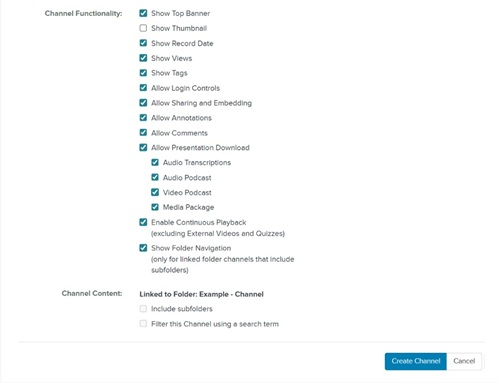
- Under Channel Functionality, select the features to enable in the channel.
|
Show Top Banner |
Select this check box to display a banner at the top of the channel. When you select this option, additional banner settings appear after you create the channel. |
|
|
Show Thumbnail |
Select this check box to display the channel’s thumbnail image next to its title. |
|
|
Show Record Date |
Select this check box to display the record dates for presentations included in this channel. |
|
|
Show Views |
Select this check box to display the number of views for presentations included in this channel. |
|
|
Show Tags |
Select this check box to display the tags for presentations included in this channel. |
|
|
Allow Login Controls |
Select this check box to allow users to log in and out of Mediasite from the channel page. |
|
|
Allow Sharing and Embedding |
Select this check box to display controls in the channel that allow users to share or embed presentations with others.
|
|
|
Allow Annotations |
Select this check box to allow users with appropriate permissions to add annotations to presentations.
|
|
|
Allow Comments |
Select this check box to allow users to provide feedback on presentations via comments.
|
|
|
Allow Presentation Download |
Select the check box to allow users to download media packages, podcasts, caption files, and video podcasts from the channel.
|
|
|
Enable Continuous Playback (excluding external videos and quizzes) |
Select this check box to allow auto-play of a channel’s presentations. When a user watches a presentation, successive presentations automatically load and begin playing in the channel’s player. Presentations with quizzes and external videos are skipped. |
|
|
Show Folder Navigation |
Select this check box to allow users to navigate through a channel’s folders. This feature is available only for channels that have been linked to folders that have subfolders. |
- Click Create Channel.
- After you create a channel, click Browse Channels. Optionally, make it a favorite so you can quickly access it.
- Click View to see how the channel will appear to your users.