Edit or delete channels
After you create a channel, you can edit it as needed. There are additional settings available when editing your channels. When you no longer need the channel, you can delete it to conserve space.
|
Caution If you want to retain presentations in the channel, move them to another location BEFORE you delete the channel. When you delete a channel, all presentations in it are also deleted. If you accidently delete content, contact your Mediasite administrator immediately to retrieve it to ensure it is not lost permanently. |
To edit a channel:
- Click Browse Channels and browse to the channel you want or select the channel in Favorite Channels. Click the channel’s title to see additional channel management options.
- Click Edit to view the Edit Channel page and update the channel settings as needed.
- Click Save Changes.
|
Note For a detailed description of the channel settings, see Create channels. |
To delete a channel:
- Click Browse Channels and browse to the channel you want. Click the channel’s title to see additional channel management options.
- Click Edit to view the Edit Channel page.
- Click Delete.
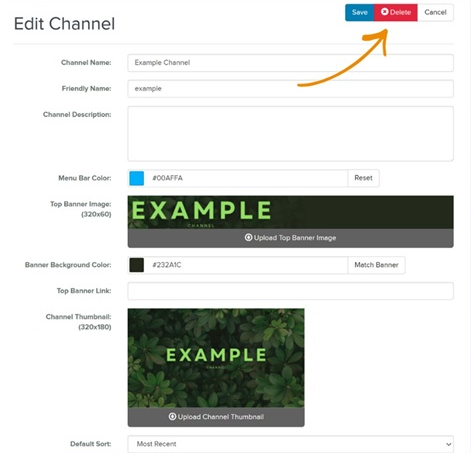
- In the confirmation message, click Delete Channel.