Assign custom permissions (desktop only)
When you are using My Mediasite from a desktop computer, you can assign custom permissions in addition to jobs.
To assign custom permissions:
- On the presentation’s properties page, click Edit Security.
- In the Security dialog, clear the Inherit permissions from parent folder check box. The Add people or groups area appears.
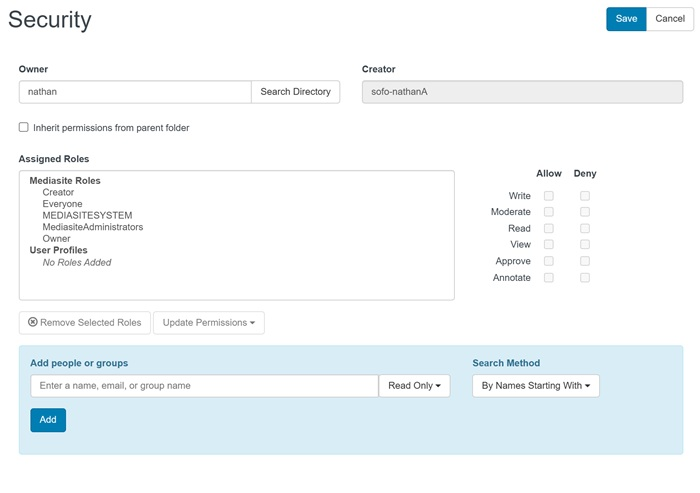
- In the Add people or groups field, enter a name (or username), email, or group . If you have a large number of users, groups, or roles in your system use one of the Search Method options to narrow your search.
- Select the user, group, or role and click Add. It is added to the Assigned Roles list with the Read Only job.
- Select the check boxes next to the permissions you want to allow or deny.
|
Read |
Gives user read permission. The user can see the presentation in My Mediasite, shared folders, and other applications. The user can also add the presentation to a catalog. |
|
|
Write |
Gives user read and write permissions. User with this permission is able to do everything associated with read permissions (see above) and the following:
|
|
|
View |
Gives user view permission. User is able to see the presentation in channels and view it in Mediasite Player. |
|
|
Moderate |
Gives user read and moderate permissions. User is able to view and approve questions from the audience on the presentation's Q&A Forum page. Questions are forwarded to the email address associated with the user's profile unless the user opts out of moderator emails or provides an alternate moderator email address. Users with moderate permissions also receive notifications when comments and annotations are flagged as inappropriate. If a user is assigned Moderate and Annotate permissions, they can moderate a presentation’s annotation discussions.
|
|
|
Approve |
Gives user read, view, and approve permissions. User can comment on the presentation as part of the content approval (REA) workflow, review edited versions of it, recommend changes, and approve or reject content updates. Approvers cannot edit a presentation's content. |
|
|
Editor |
Gives user read, write, and view permissions. User can record or upload content to the presentation. User can also edit the presentation using the web editor. This user's content does not become generally viewable until an Approver (see below) reviews it and marks it approved. |
- Click Save.