Add quiz questions and answers
After you add a quiz to your presentation, you can add questions and answers. In each quiz, you can include the following question types: true or false, single-answer, multiple choice, and multiple-answer multiple choice.
|
Note If a user other than the quiz owner makes changes to the quiz content, they can select Request Review after making changes to flag the quiz for review. Selecting this option sends an email notification to the quiz owner indicating there are changes in need of review. |
To add questions and answers to a quiz:
- On the presentation’s properties page, click Edit Quizzes and select a quiz from the list.
- Click Add Question and enter the following information.
|
Question |
Enter a quiz question for students to answer. |
|
Description (optional) |
Enter an optional description that provides students with additional information about the question. |
|
Add image (optional) |
Upload an image to accompany the quiz question. |
|
Type |
Three question types are available for selection:
|
|
Points |
Enter a point value to set how a question is weighted. |
|
Randomly order answer choices |
Select this option to randomize answer choices for a question. Use this option to discourage answer sharing among students. If Randomly order answer choices is enabled in the general quiz settings, this option is enabled by default. |
|
Use rich text for answer choices |
Select this option to enable rich text formatting for each answer. This also enables the Math Editor. |
|
Answers |
Enter an answer to the
related question. You can also left-click Click Add Answer to add additional answer choices. |
 to drag answers into a different order.
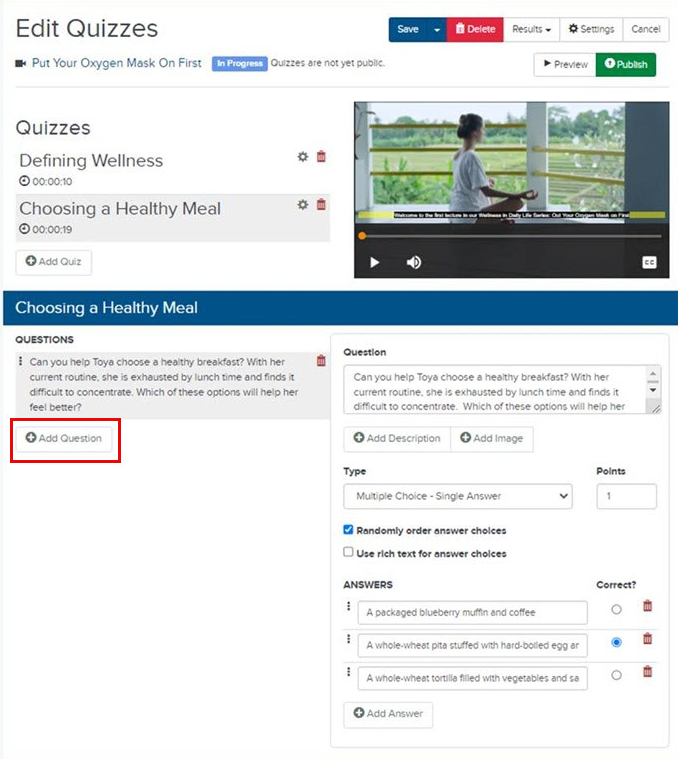
- Repeat step 2 for each question you are adding to the quiz.
- Click Save.