Choose general quiz settings
Before you can add quizzes to a presentation, you must select a quiz type and specify quiz settings. All quizzes added to a presentation share the same general settings and quiz type.
To update a presentation’s general quiz settings:
- On the presentation’s properties page, click Edit Quizzes.
- Select a quiz type. Then customize the quiz, as needed, by selecting the various quiz settings.
|
Quiz Type |
Select a quiz type:
Students cannot change their answers or retake a quiz after submission. |
|
Show users their score |
Select this option to allow students to see their scores after submitting a quiz. |
|
Show users which questions they answered correctly |
Select this option to allow students to see which questions they answered correctly and incorrectly. |
|
Show users which answer was the correct answer |
Select this option to allow students to see the correct choice for each question. |
|
Show users results after each quiz |
Select this option to allow students to see quiz results after submitting an individual quiz. Quiz results show the total number and percentage of correct answers.
|
|
Require users to submit their answers |
Select this option to require students to submit their answers for all quizzes at the end of a presentation. After a presentation completes, students are prompted to Review Quiz and Submit Answers to receive a score. If this option is disabled, students only see their scores for all quizzes without being required to submit or review answers. |
|
Allow answer edits after submission |
Select this option to allow students to reset answers and retake all quizzes. When this option is enabled, students are able to reload the presentation and Reset answers to take all quizzes again. |
|
Randomly order answer choices |
Select this option to randomize answer choices for all included quiz questions. Use this option to discourage answer sharing among students. This option overrides all individual questions with the Randomly order answer choices setting disabled. |
|
Disable player seeking |
Select this option to disable the seek bar. When this option is enabled, students cannot take a quiz without viewing the content preceding it. |
|
Title |
Enter the title students see before the presentation begins. |
|
Description |
Enter a description of quiz content students see before the presentation begins. |
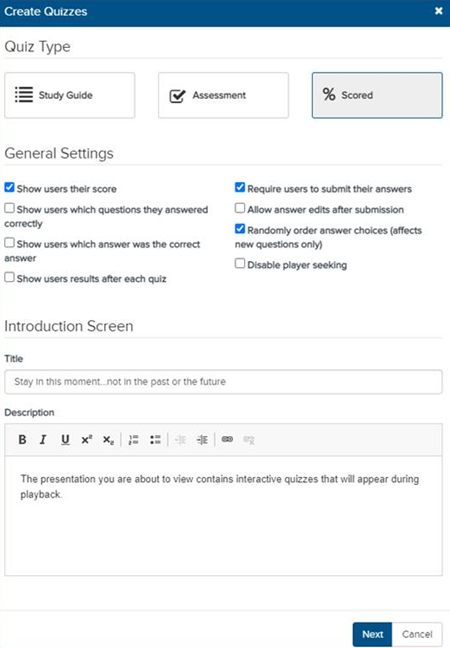
- Click Next.
- To update the general quiz settings at any time, click Edit Quizzes > Settings.