Add a room configuration
When you add a room configuration, you associate templates with it. A template’s settings define how presentations are created, published and the media format types available. You can create custom presentation templates for use with your Recorder room configurations.
Sample naming and description conventions
When adding a room configuration, it is helpful to use a consistent naming scheme and to include the recording capabilities in the description so users adding rooms have guidelines to follow.
The table below illustrates a sample room configuration scheme that an organization might use.
|
Example title |
Example description |
|---|---|
|
Platinum level |
Recorder room configuration for use in medical school operating theater, large lecture halls (auditoriums):
|
|
Gold level |
Recorder room configuration for use in distant learning production studio, medium size lecture halls, and labs:
|
|
Silver level |
Recorder room configuration for use in distant learning production studio and small lecture halls/ classrooms:
|
To add a room configuration:
- Click Recording > Room Configurations.
- Click Add New.
- From the Add New drop-down list, select Recorder Configuration.
- Enter a Title and Description for the room.
- Select Templates for the room. When you add a room, and select a room configuration for it, the room inherits these templates.
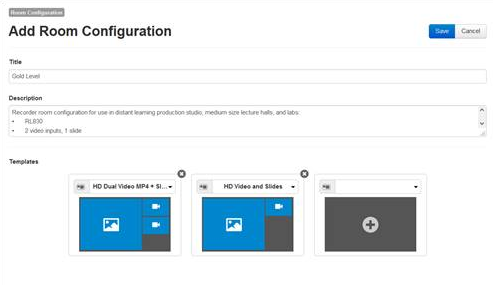
- Click Save.