Launch Mediasite Capture
To launch Mediasite Capture:
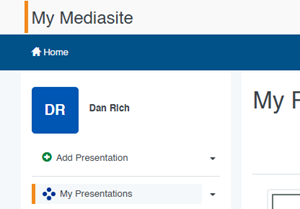
- Log in to My Mediasite and select Add Presentation in the top left corner.
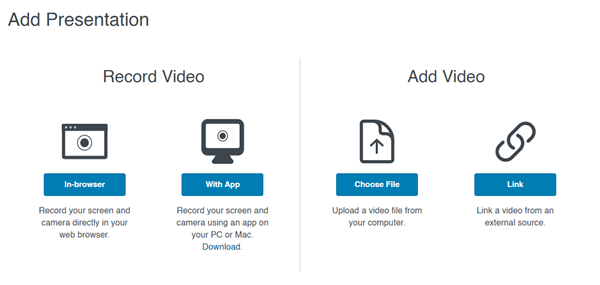
- In the Add Presentation dialog, under Record Video, select In-browser.
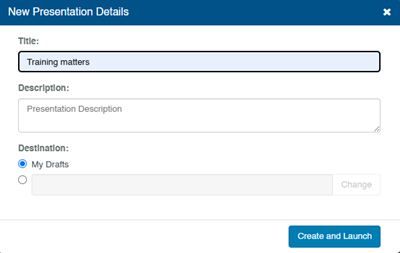
- In the New Presentation Details dialog, enter a title and/or description for your new presentation, and then select Create and Launch.
|
Caution If you don’t see Mediasite Capture launch in a new browser tab, check that your browser allows pop-ups. |
- Next choose what to record.