Update player settings
You can update the player used for the presentation as well as the features available in the player.
To update a presentation’s player settings:
- On the presentation’s properties page, click Edit Details.
- Click the Player tab and update the settings as needed:
- Update the player
- Update the playback options
- Update the general layout
- Update the presentation information and graphics
- Click Save.
Update the player
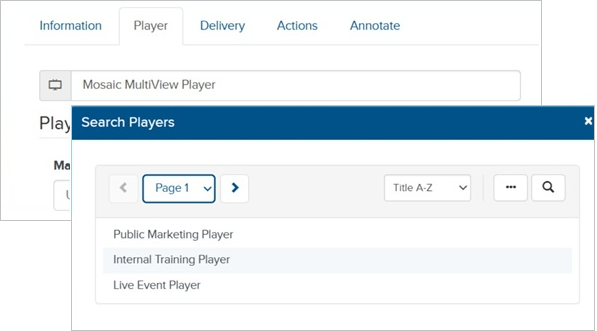
- Click in the Player field.
- Navigate to or use the search feature to locate the player you want to use and select it.
|
Note Depending on your permissions, you may see the Use Mediasite Quizzing check box. Selecting this check box, automatically loads the External Quiz Player. You have less options when using this player. |
Update the playback options
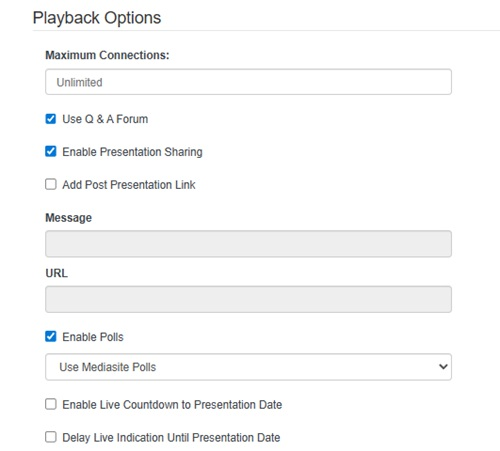
Select the features to enable in the player when viewing presentations. The settings vary depending on the player you are using.
|
Maximum Connections |
Enter a number if you would like your presentation to be viewable only to a certain number of concurrent viewers. The default value Unlimited. |
|
Use Q & A Forum |
Select this check box to allow audience members to ask questions during live and on-demand presentations using Mediasite Player. |
|
Enable Presentation Sharing |
Select this check box to allow users to share this presentation from Mediasite Player. |
|
Add Post Presentation Link |
Select this check box to add a custom message and link to external content, for example, a web-based survey, at the end of your presentation. Enter the Message and URL for the link. |
|
Enable Polls |
Select this check box to use polls in the presentation. Polls allow you to interact with your audience during a presentation and receive direct feedback.
|
|
Enable Live Countdown to Presentation Date |
Select this check box to display a countdown in the play cover that ends the day of the presentation. Users who navigate to the presentation in a video collection or launch the presentation using its link see the countdown.
|
|
Delay Live Indication Until Presentation Date |
Select this check box so the live broadcast indicator does not appear until the date the presentation goes live. |
Update the general layout
Select the features to enable in the player when viewing presentations. The settings vary depending on the player you are using.
|
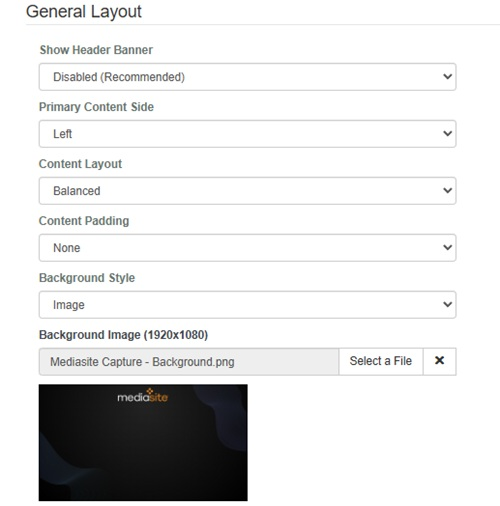
Show Header Banner |
By default, this feature is Disabled (the recommended setting) since the content is the primary focus. The options are Show/hide with controls and Always visible. |
|
Primary Content Side |
Choose the side the primary video appears in the player. |
|
Content Layout |
Choose how you want the player to display content. The default is Biased where the primary video is larger than the supporting content. Select Balanced if you want to have both windows the same size. |
|
Content Padding |
Choose the amount of padding to add around each video source. The options are None, Small (12px), Medium (24px), and Large (36px). |
|
Background Style |
Customize your player by updating the color or using an image for the background:
|
Update the presentation information and graphics
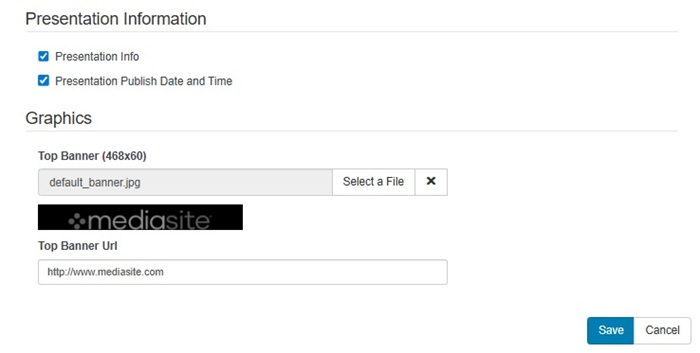
Select the presentation information and images that appear in the player.
|
Presentation Information |
|
|
Graphics |
|