Schedule Change Visibility
Automatically change visibility to manage when content becomes available to your audience.
To schedule an action to change a presentation's visibility:
- On the presentation’s properties page, click Edit Details > Actions. Click Schedule new Action.
- Select Change Visibility from the Action drop-down list.
- Select one of the following from the New Visibility drop-down list.
|
Viewable |
Allows users with appropriate permissions to view presentation. When the presentation is in this state, if publishing to external sites is enabled, its audio or video podcasts are published to the sites. |
|
Private |
Select so only the owner can view the recorded presentation. Other users can see the presentation in Mediasite applications but they are unable to view it. Only the presentation’s owner can view, search for, and update the presentation. Changing a presentation’s visibility to private allows the presentation owner to fine-tune a presentation before making it available for viewing. |
|
Offline |
Select so only the owner can view the recorded presentation. Offline presentations are not available for viewing or in searches and only you can update them. Changing a presentation’s visibility to offline allows the presentation owner to hide a presentation without changing its permissions. |
- Specify when the action should be done.
|
Relative Date |
In the Relative From drop-down list:
In Relative Offset, specify the amount of time. |
|
Exact Date |
Select Exact Date and use the calendar to select the date, if you want the action to occur on a certain day. |
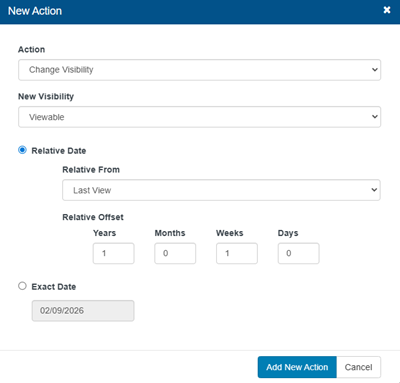
- Click Add New Action.
- When you have finished your updates, click Save.