Review and approve or deny changes
As part of the Review-Edit-Approve (REA) workflow, presentations are taken through an iterative content approval process before being made available to an audience.
If you have been assigned approver permissions for a presentation, you can review, comment on, approve, and reject the original presentation as well as any updates made to it. After you complete your review, the owner of the presentation or a user with editor permissions makes additional updates as needed.
To approve or deny changes made to a presentation:
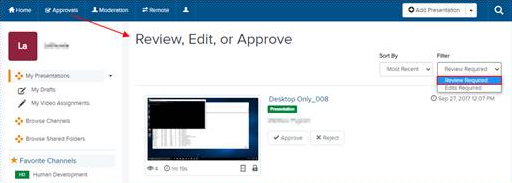
- Click Approvals in the top banner and select Review Required from the Filter drop-down list.
- Navigate to the presentation you want to approve. Click its title to view its properties page.
- On the presentation’s properties page, click REA Comments to expand the comments list. Review the comments.
- If the comments indicate the presentation’s video has been edited, click Watch in New Window to launch and view the edited presentation in Mediasite Player.
- After you have completed your review, do one of the following.
|
Approve |
Click to approve the changes. The presentation's status changes to Approved and it is no longer listed in the Review Required view. |
|
Reject |
Click to reject the changes. The presentation's status changes to Edits Required and the presentation is now listed in the Edits Required folder. Under the Review Comments tab, enter a comment detailing why the changes were rejected. Click Add. |