Publish presentations
You publish presentations to channels.
Channels are customizable video collections that organize and deliver content by course, department, event, or other criteria. They can be folder-based (specific selected content) or search-based (dynamically populated by metadata), embedded directly into LMS courses, and customized with unique branding.
Channels also serve as a workspace where content creators can quickly add, edit, and manage presentations without returning to the main Mediasite interface.
|
Note You must set presentations to Viewable before they will appear in any published channel. |
To publish a presentation to a channel:
- Create a presentation or select an existing one.
- On the presentation’s properties page, click Publish.
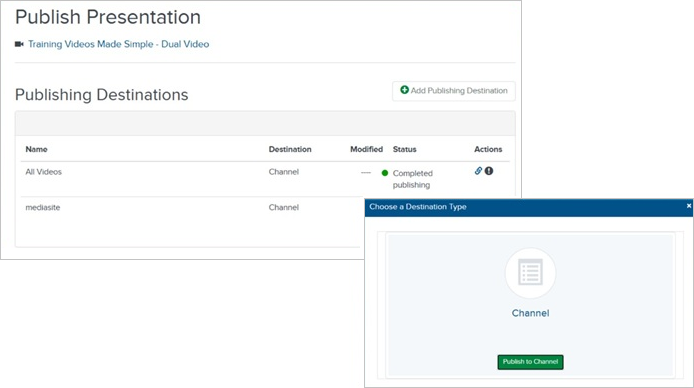
- Click Add Publishing Destination. In the Choose a Destination Type dialog, click Publish to Channel.
- If the channel has a terms & conditions agreement associated with it, you must read and accept the agreement before you can publish your presentation. Click Next.
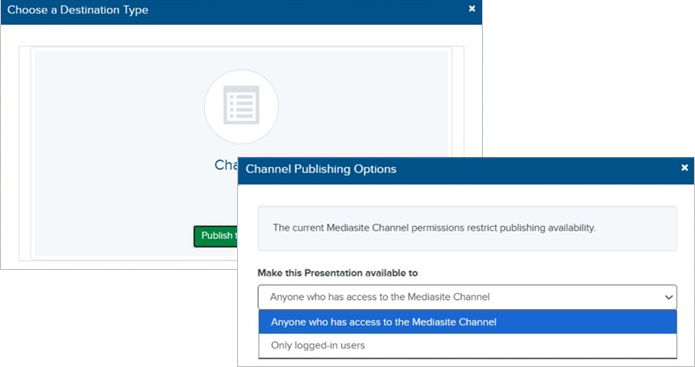
- From the Make this Presentation available to drop-down list, select the users that will be able to watch the presentation when it is published to the channel. These simplified permissions override the presentation’s original permissions.
|
Anyone who has access to the Mediasite Channel |
Allows any user who has access to the channel to watch the presentation. |
|
Only logged-in users |
Allows only users logged in to Mediasite to watch the presentation. |
- Click Save.
|
Note If this feature is not available on your Mediasite, contact your Mediasite administrator for more information. |