Invite registered roles
You can share your presentation with registered roles (associated with one or more email addresses) by sending an email invitation that includes the presentation’s link and details. When users click the link, the presentation launches in Mediasite Player. If the presentation is not public, users must log in before they can view it.
When you share your presentations using roles, your Mediasite administrator can adjust who receives the links for them by adding and removing email addresses to the role as needed.
To email a presentation invitation to registered roles:
- On the presentation’s properties page, click Share Presentation.
- Click Invite Registered Roles in the Share Presentation dialog.
- If you have not explicitly assigned permissions to the presentation, it inherits its permissions from its parent folder and a warning message appears. To ensure the users you are inviting can view the presentation, click Allow Sharing.
- Select the roles you want and enter a personal message to accompany the standard invitation text and link.
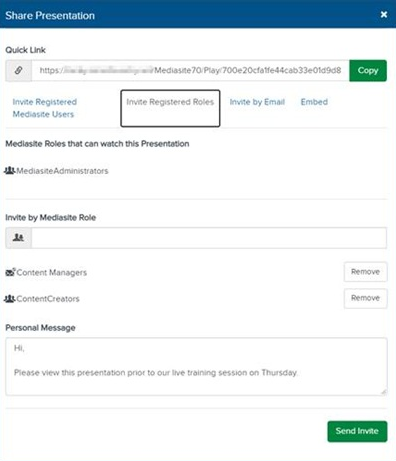
- Click Send Invite. The email addresses associated with the role receive an email invitation and are assigned view permissions to the presentation.