Embed a presentation in a website or LMS page
You can copy the code needed to embed the presentation in a website or Learning Management System (LMS).
When you embed a presentation, the Player is visible on the page. Users click the Play button in Mediasite Player to view the presentation. If the presentation is not public, users must log in before they can view it.
|
Note If you embed a presentation in a webpage that is in a different domain, your audience must accept third-party cookies to ensure proper playback. For detailed instructions on accepting cookies in each supported browser, see KBA 1200325225. |
To embed a presentation in a website or LMS page:
- On the presentation’s properties page, click Share Presentation.
- Click Embed in the Share Presentation dialog.
- Select the size you want the presentation embedded into your website from the Embed Size drop-down list. If you want to specify a different size, click Custom Size and specify the frame’s width and height.
- The Embed Code content updates to reflect the selected size.
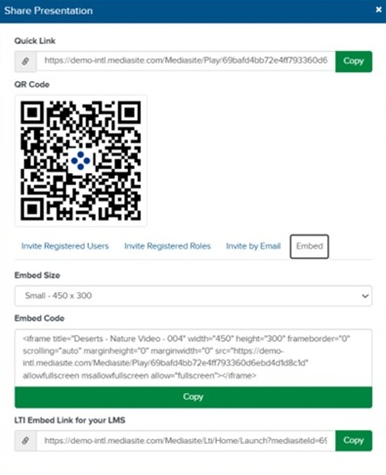
- Copy the appropriate code to your clipboard.
|
Embed Code |
If you are embedding your presentation into a website, click Copy below the embed code. |
|
LTI Embed Link for your LMS |
If you are adding the presentation to an LMS page, click Copy next to the link code. |
- A message appears indicating that the code has been copied to the clipboard. Paste the copied code into the application you are using to update your website or LMS page.