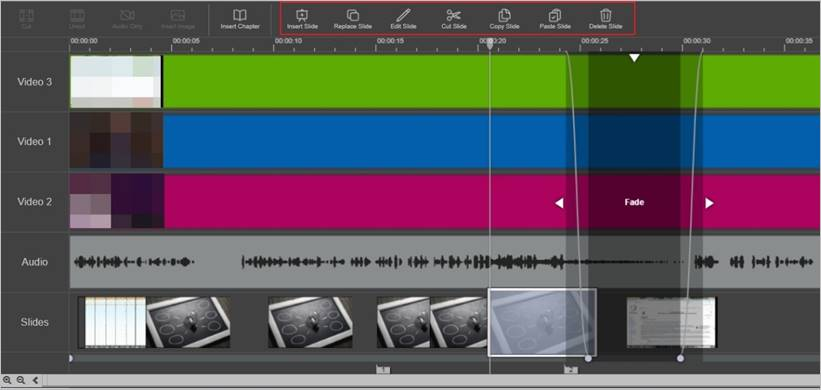
Update slides
From the timeline, you can add, remove, or replace slides in the slide stream as well as update a slide’s title and description. You can also move slides along the timeline to adjust their timing in the presentation. Editor supports JPEG, PNG, and GIF images.
To select multiple slides, do one of the following:
- In the timeline, select the slide stream and then click and drag the timeline cursor to select all slides in that portion of the timeline.
- Press the Shift key, select a slide and then select another slide. The two slides and all the ones in between are selected.
- Press the Ctrl key and select individual slides until you have selected all the ones you want to update or remove.
To update your slides:
Navigate through the timeline and do one or more of the following in the slide stream.
|
Add new slides |
To add a new slide:
|
|
|
Replace slides |
To replace a slide:
|
|
|
Copy and paste slides |
To copy and paste slides:
|
|
|
Move slides |
To move slides:
|
|
|
Delete slides |
To delete a slide:
|
|
|
Add slide title and description |
To add a title and description:
|
|
|
Undo changes |
To undo changes:
|