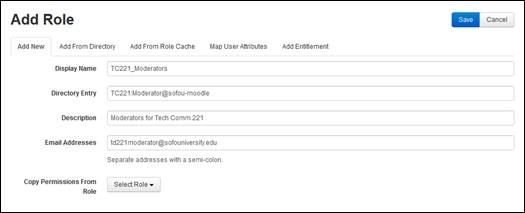
You can add new roles manually and assign permissions to them.
To add a new role:
1. Click Security > Roles > Add New > Add New.
2. Specify the following:
|
Settings |
Details |
|
Display Name |
•Specify how the role’s name will appear in Mediasite applications. |
|
Directory Entry |
•Select how the role will appear in the directory. |
|
Description |
•Add a description that will allow you and other users to identify the role easily. |
|
Email Addresses |
•Add email addresses you want to associate with this role. If this role is given Moderate permissions on a presentation, notifications will be sent to these email addresses. |
3. From the Copy Permissions From Role drop-down list, select the role that has permissions you want to assign to this role. You can always update these permissions later.
4. Click Save.
Add role from directory